Nearly every account you use is protected by a password. The problem is that passwords are guessed, reused, and stolen every day. Once someone has your password, they can walk right in, unless there is a second lock on the door.
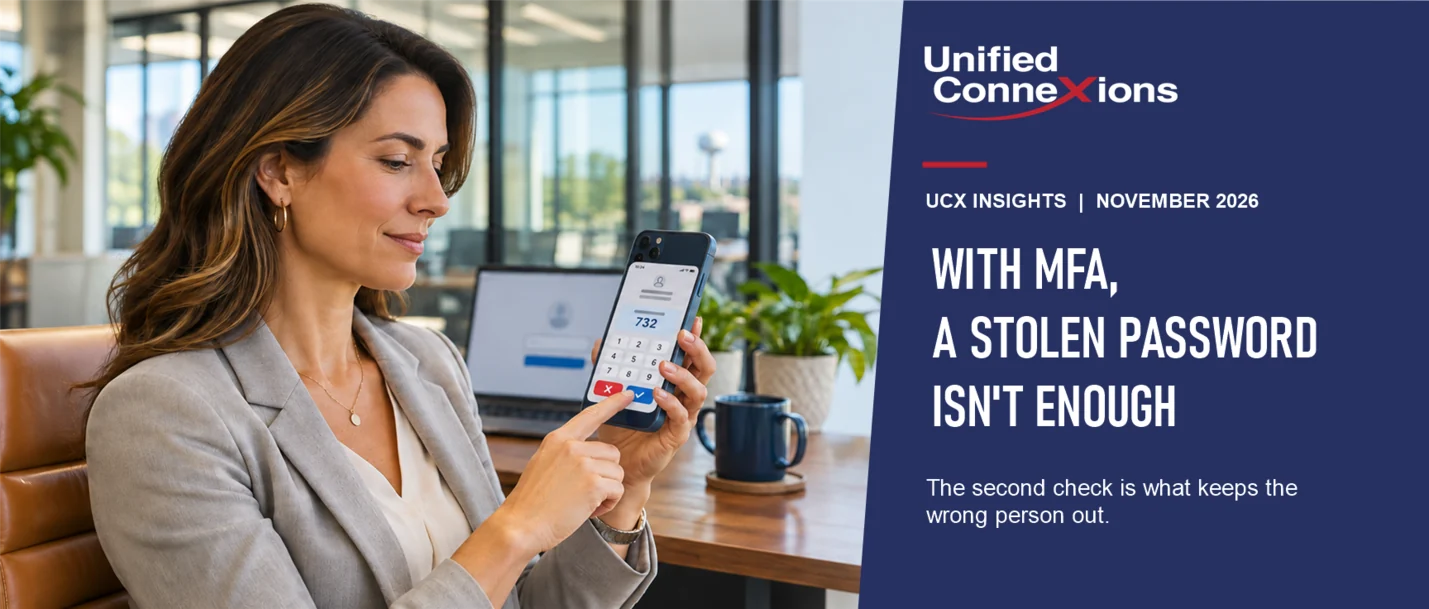
That second lock is called MFA, short for multi-factor authentication. You may also hear it called two-factor authentication or two-step sign-in. After entering your password, you verify your identity a second way, usually with your phone. Even if someone steals your password, they cannot get in without completing that second step.
In this article, we explain how MFA works, the different types available, and where to enable it first.
Why a password is not enough
Most people do not lose their password because someone cracked it. They lose it because they entered it on a fake login page, reused it on a site that was breached, or chose one that was easy to guess.
Email is usually the first target. Once an attacker is in your mailbox, they can read your messages, reset your other passwords, and send fraudulent invoices that appear to come from you.
The Cybersecurity and Infrastructure Security Agency (CISA) states that MFA can prevent a significant number of account compromise attacks. It is one of the simplest and most cost-effective protections a business can put in place.
What MFA is
Think of an ATM. To withdraw cash, you need two things: your card and your PIN. Someone who finds your card cannot use it without the PIN, and someone who learns your PIN still needs the card.
MFA works the same way. It requires two different types of proof:
- Something you know, such as your password.
- Something you have, such as your phone or a small security key.
- In some cases, something you are, such as your fingerprint or face.
A criminal who steals your password from across the country does not have your phone. That is the entire principle.
The kinds of MFA, from good to best
Not all MFA is created equal. CISA's guidance is clear: any MFA is better than no MFA. However, some methods are considerably stronger than others.
- Text or email codes. A code is sent to your phone or email, and you enter it to sign in. This is the easiest method to set up and far better than a password alone. It is also the weakest, because text messages and emails can be intercepted or redirected.
- Authenticator app codes. An app on your phone, such as Microsoft Authenticator, displays a code that refreshes roughly every 30 seconds. Because nothing is sent by text message, these codes are harder to steal.
- App approval with number matching. When you sign in, your screen displays a number, and you enter that number in the app on your phone to approve the request. It is quick for you and difficult for anyone else to fake. We explain why the number matters in the next section.
- Security keys and passkeys. A security key is a small device you plug in or tap; a passkey is built into your phone or computer. CISA calls this method the gold standard, because it will not work on a fake login page at all.
For most organizations, an authenticator app with number matching is a strong, practical choice. Security keys make the most sense for the accounts that control everything else, such as IT administrator accounts.
One tactic to watch for
Some apps once displayed a simple "Approve?" prompt with a single button. Attackers learned they could use a stolen password to trigger that prompt repeatedly until a frustrated employee tapped Approve just to make it stop.
CISA calls this "push bombing" or MFA fatigue. The solution is number matching. Because the user must enter the number displayed on the genuine login screen, an unexpected prompt cannot be approved by accident.
Share this one rule with your staff: if you receive an approval request you did not initiate, deny it and notify IT immediately. An unexpected prompt means someone else has your password.
Where to turn it on first
You do not have to do everything at once. CISA recommends starting with the accounts that would cause the most damage if compromised, along with the systems attackers target most often, such as email, file storage, and remote access. In practical terms:
- Email first. For most businesses, that means Microsoft 365 or Google Workspace. Enable it for every user, including the owners.
- Remote access. Any method of connecting from outside the office, such as a VPN or remote desktop.
- Administrator accounts. The accounts that can change settings, add users, or manage your backups.
- Financial accounts. Banking, payroll, and accounting systems.
- Everything else that supports it.
This also aligns with what insurers ask. As we discussed in our article on cyber insurance forms, most applications ask about MFA on email, remote access, and administrator accounts. In addition, the login for your backup system should have its own MFA, as we explained in our article on immutable backups.
Questions to ask your IT team
Questions to ask your IT team
- Is MFA required, or merely enabled? "Optional" means users can skip it. Ask for a report confirming that MFA is required for every user, including the owners.
- Which method are we using? Text message codes are a starting point. Ask whether you can move to an authenticator app with number matching.
- Is it enabled for remote access and administrator accounts? These accounts matter most and are the easiest to overlook.
- What about shared and inactive accounts? Front-desk logins, scanner accounts, and former employees' accounts are often missed. Each one needs MFA or should be disabled.
- What happens when someone gets a new phone? Make sure there is a simple, secure process for moving MFA to a new device, so employees do not get locked out or disable it out of frustration.
- Do employees know how to handle an unexpected prompt? Everyone should know the rule: deny it and notify IT.
What this looks like in real life
Consider an office manager who receives an email that appears to come from Microsoft. It warns that her password is about to expire. She clicks the link and enters her password on a page that looks identical to the real one.
Without MFA, the attacker now has full access to her email, and within a day they are sending fraudulent invoices to her customers.
With MFA and number matching, the outcome is different. The attacker enters her password, and a number appears on the genuine login screen. Her phone prompts her for that number, but because she never started a sign-in, she taps Deny and calls IT. Her password is changed that afternoon, and nothing further happens.
Same mistake, very different outcome.
How we help
At Unified ConneXions (UCX), we build our standards around the CIS Controls, and requiring MFA is one of the protections we assess when we onboard a new managed IT client. Our Microsoft and cloud team configures MFA in Microsoft 365 correctly, and our cybersecurity team ensures the most critical accounts are protected first.
We also hold regular Technology Business Reviews with each client to review who has MFA, who does not, and what to strengthen next.
Bring the questions above to your IT team. If you would like help, Unified ConneXions would be glad to walk through them with you.
The office scenario above is fictional and is intended to illustrate how this can happen. This article provides general information and is not legal or compliance advice.